So "Show" and "Clip" now could be turned on/off independently instead of separate menu "Show and Clip"? Seems like logical simplification.
But i can't understand now what "Cut Mask" means. It feels like not working.
Using "Move Layer tool" "Alt+Shift+arrow up" and "Alt+Shift+arrow down" both rotate layer 90 degree counterclockwise instead of 90 degree counterclockwise and 90 degree clockwise
Using "Move Layer tool" "Alt+arrow down" key rotates layer clockwise, but "Alt+arrow up" key don't rotates layer counterclockwise.
Du hast keine ausreichende Berechtigung, um die Dateianhänge dieses Beitrags anzusehen.
From other point of view new menu logic requires more clicks to turn on the most commonly used "Clip" option alone:
- Right-click to open menu
- Select "Clip" (now both Show and Clip enabled)
- Click on Eye icon in layers list to disable "Show" (or Right-click to open menu and click on "Show" to disable it)
With old menu logic it was faster:
- Hover menu
- Select "Clip"
Anyway, Shift+click directly on eye icon still works and it is fastest way to turn "Clip" alone.
when I click to expand or collapse a dockable menu, PHOTOLINE chrashes, whichever LAYERS, CHANNELS, TOOLBOX etc.
other issues Ive been though:
1. HUE/SATURATION ajustment layer
Color picker: if I click any color on the image, red dessapears from range list. Also, if I pick and edit greens (turning it to red in HUE slider), as I click on magentas, the green edition dessapears and magenta takes the edit I did... shouldnt PL recognize another color and rebegin editting, like when I do it from Range?
2. BORDER MATTING
No matter what, it always shows the cross (precise) cursor, if I choose OPTIONS > mouse > paiting cursor > certe: nome
3. LIQUIFY upper part of image
Using forward warp upwards at the top of the image, it creates some strange stripes, while on the sides and and downwards, this doesn't happen. another thing: zooming out the image to a smaller size allows its window to appear, then I can push close to the edges, but zooming 100%, if the background window of the image doesnt show, then I cannot push, so I think it would be good if I could zoom in and use moving hand that would show the window beyond the image edges.
doubt: after drawing a vector object, can I fill it with a color from the image by picking or whatever?
betotex hat geschrieben: Fr 21 Mär 2025 00:12
another thing: zooming out the image to a smaller size allows its window to appear, then I can push close to the edges, but zooming 100%, if the background window of the image doesnt show, then I cannot push, so I think it would be good if I could zoom in and use moving hand that would show the window beyond the image edges.
In Ps this setting named "Overscroll". In PhotoLine you can use: Preferences->Display->Document Set the Edge Width for both the Document Mode and Picture Mode to 1000%.
also i like to use: Preferences->Working->Mouse->Scroll image contents with mouse wheel uncheck it to enable zoom with scroll.
Screen Shot 2025-03-21 at 4.48.15 AM.jpg
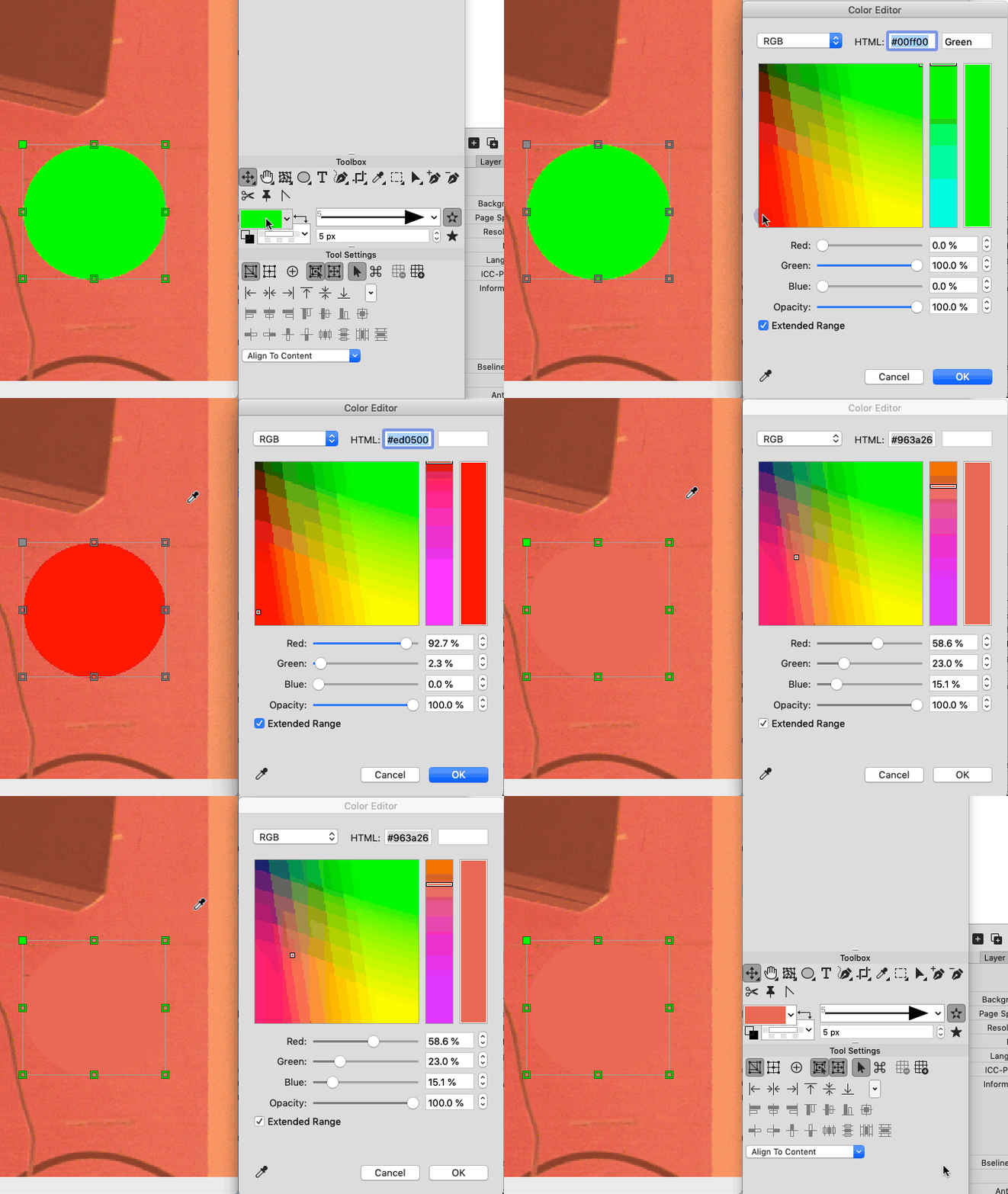
doubt: after drawing a vector object, can I fill it with a color from the image by picking or whatever?
Just open Color Editor in Toolbox and pick any color from image:
Du hast keine ausreichende Berechtigung, um die Dateianhänge dieses Beitrags anzusehen.
shijan hat geschrieben: Fr 21 Mär 2025 04:49
In PhotoLine you can use: Preferences->Display->Document Set the Edge Width for both the Document Mode and Picture Mode to 1000%.
I´ve never noticed this in OPTIONS. it´s what I needed. Thank you so much for the tip!
Just open Color Editor in Toolbox and pick any color from image:
Quite hidden feature for a fool COLOR EDITOR. I had forgotten that! thanks again!
betotex hat geschrieben: Fr 21 Mär 2025 00:12
when I click to expand or collapse a dockable menu, PHOTOLINE chrashes, whichever LAYERS, CHANNELS, TOOLBOX etc.
Seems problem only in Windows version. No any crash on macOS.
1. HUE/SATURATION ajustment layer
Color picker: if I click any color on the image, red dessapears from range list. Also, if I pick and edit greens (turning it to red in HUE slider), as I click on magentas, the green edition dessapears and magenta takes the edit I did... shouldnt PL recognize another color and rebegin editting, like when I do it from Range?
I can confirm that Red color disappears from Hue/Sat. It also crashed application once when i pick color again or move slider. Not sure exactly because i can't reproduce crash again.
Screen Shot 2025-03-22 at 4.04.59 AM.jpg
Du hast keine ausreichende Berechtigung, um die Dateianhänge dieses Beitrags anzusehen.
Zuletzt geändert von shijan am Mo 24 Mär 2025 09:55, insgesamt 1-mal geändert.
(Windows10,PL25b4) I'm getting a crash when I expand a panel by clicking on its title bar. But if I double-click on a tool icon, it opens properly. Does anyone else see this? This doesn't happen with v25.
betotex hat geschrieben: Fr 21 Mär 2025 00:12
when I click to expand or collapse a dockable menu, PHOTOLINE chrashes, whichever LAYERS, CHANNELS, TOOLBOX etc.
Seems problem only in Windows version. No any crash on macOS.
1. HUE/SATURATION ajustment layer
Color picker: if I click any color on the image, red dessapears from range list. Also, if I pick and edit greens (turning it to red in HUE slider), as I click on magentas, the green edition dessapears and magenta takes the edit I did... shouldnt PL recognize another color and rebegin editting, like when I do it from Range?
I can confirm that Red color disappears from Hue/Sat. It also crashed application once when i pick color again or move slider. Not sure exactly because i can't reproduce crash again.
Screen Shot 2025-03-22 at 4.04.59 AM.jpg
shijan hat geschrieben: Mi 19 Mär 2025 02:50
From other point of view new menu logic requires more clicks to turn on the most commonly used "Clip" option alone:
- Right-click to open menu
- Select "Clip" (now both Show and Clip enabled)
- Click on Eye icon in layers list to disable "Show" (or Right-click to open menu and click on "Show" to disable it)
With old menu logic it was faster:
- Hover menu
- Select "Clip"
Anyway, Shift+click directly on eye icon still works and it is fastest way to turn "Clip" alone.
I agree. I've noticed it takes me many more steps now while working. And I use masks a LOT.
I am unsure about these changes - could be my familiarity with the previous workflow is hindering me, but still... Feels too unwieldy for now in my opinion.
I've found something extremely fascinating about PL. I can type using Google input tool and get Tamil inside the application. While the rendering works perfectly for the first couple of lines, the glyphs suddenly stop working and revert to random filler characters. Could you perhaps see if you can fix this? My guess is that PL can support unicode? The fonts I use are Karla Tamil and Tiro Tamil. Both are Google fonts. If you wish to use some filler text: https://fonts.google.com/specimen/Tiro+Tamil - You can find it here. I'd be very grateful if you can make this work.
There you go. The word I'm trying to type is Anbe Sivam... Love is God. Which is the Tamil Lorem Ipsum text. The word should appear as follows: அன்பே சிவம் But as you'll see, the glyph switches as soon as I type in the second word. Here's the GIF. https://imgur.com/a/VlB4KG1 Problem appears in both Tiro Tamil and Karla.
Du hast keine ausreichende Berechtigung, um die Dateianhänge dieses Beitrags anzusehen.
I also noticed that the moment I apply a custom kerning or tracking, the glyphs break. There must be something in the way that PL interprets spacing rules for this fonts that's breaking it. The simple act of copy/pasting works, but I can't seem to get far from here, though.
Zuletzt geändert von Vivi_Ram am Di 08 Apr 2025 17:20, insgesamt 1-mal geändert.